

Is your device getting too hot? Overheating isn’t just about performance; it can also shorten your laptop’s life; whether you’re multitasking with heavy apps or working in less-than-ideal conditions, managing your MacBook Pro’s temperature is key to smooth operation.
This guide is here to help you understand why your MacBook Pro may be overheating, what steps you can take to cool it down, and how to prevent it from overheating.
Why Does Your MacBook Pro Overheat?
Before we get into solutions, let’s first understand what’s pushing your MacBook Pro to the limit. Common culprits include:
1. High Processor and GPU Usage
Tasks like video editing, gaming, or running virtual machines can load your MacBook’s CPU and GPU, causing heat buildup.
2. Poor Airflow
Using your MacBook Pro on soft surfaces like a bed, couch, or even your lap can block the vents, reducing airflow and increasing internal temperatures.

3. Background Apps
Running multiple apps simultaneously or having unnecessary programs in the background can silently drain your MacBook Pro resources and cause overheating. This not only hampers performance but also puts unnecessary stress on your device. By managing your MacBook Pro resources well, MacBook Pro Users can keep their laptops cool and extend their life.
4. Outdated Software
An outdated Mac OS or apps may not optimize resources well, creating more strain on your system than necessary.
5. Dust Build-Up
Over time, dust can accumulate in your MacBook Pro cooling vents or fans, restricting airflow and causing the system to overheat.
Now, onto the good stuff—how to effectively cool down your MacBook Pro.
How to Cool Down Your MacBook Pro
1. Ensure Proper Ventilation
Use your device on a hard, flat surface (like a desk) to allow the vents at the bottom or sides to do their job efficiently. Proper ventilation is crucial for keeping your MacBook cool and running smoothly. By avoiding soft surfaces like beds or couches, MacBook Pro Users ensure that their MacBook’s cooling system can operate effectively, preventing overheating and extending the lifespan of their device.
Consider getting a laptop stand if you work on your lap or soft surfaces.
PROS:
Immediate improvement in airflow.
Blocks overheating due to blocked vents.
CONS:
A laptop stand may add extra bulk to carry around.
2. Quit Unnecessary Background Apps
Check your activity monitor (Applications > Utilities > Activity Monitor) to see which apps are hogging resources. Quit anything you don’t need.
Close unused browser tabs that often eat up RAM and CPU.
PROS:
Frees up system resources quickly.
Prolongs battery life and reduces performance bottlenecks.
CONS:
Regular monitoring is needed to keep background activities in check.
3. Keep mac OS and Apps Updated
MacBook Pro Users, keeping your operating system up to date is essential. Apple continuously optimizes macOS to improve performance and thermal efficiency. Regularly checking for updates ensures your MacBook Pro is running smoothly and efficiently. Go to System Settings > General > Software Update to check for updates. Keeping your macOS current can prevent overheating and enhance your MacBook’s overall performance.
PROS:
Enhances system performance.
Fixes bugs that may contribute to overheating issues.
CONS:
Large updates can take up storage, and installation may require downtime.
4. Use a Cooling Pad
A cooling pad is an external add-on with built-in fans to enhance airflow and dissipate heat quickly. It’s a game-changer for users working long hours on intensive tasks like rendering videos or processing large data files.. Your Attractive Heading
PROS:
Provides immediate cooling relief.
Affordable and effective for intensive work sessions.
CONS:
Adds to desk clutter.
Requires an extra USB port.
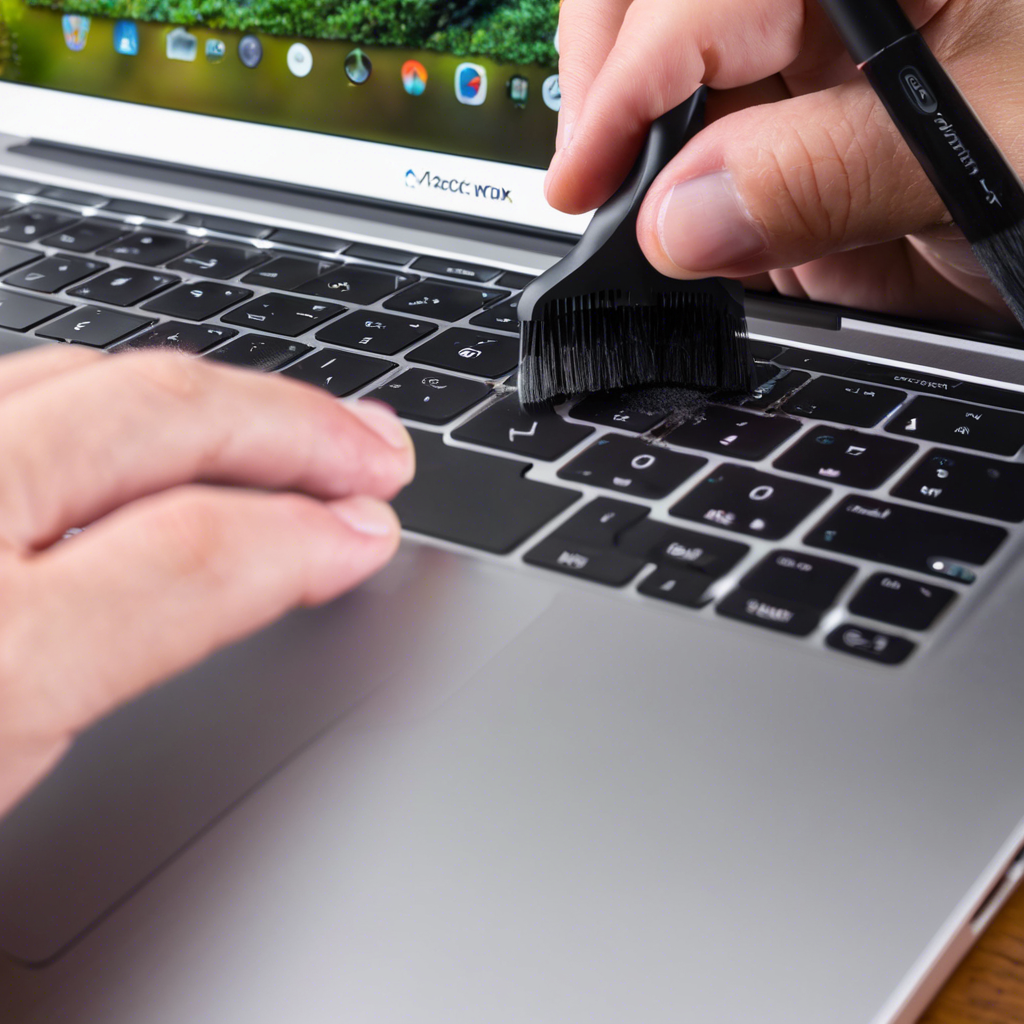
5. Clean Dust from Fans and Vents
Use compressed air to blow out dust from your MacBook Pro vents gently. You can also get it professionally cleaned if you’re uncomfortable doing it yourself.
Dust build-up can be surprisingly impactful and is often overlooked.
PROS:
Improves long-term thermal performance.
Prevents system slowdowns due to overheating.
CONS:
Compressed air cans need careful handling to avoid excess moisture.
Cleaning the interior requires expertise.
6. Optimise Graphics Settings
If you’re working on graphics-heavy apps, consider switching to the integrated GPU when high performance isn’t necessary. This can help reduce heat and prolong your device’s lifespan. Using the less powerful but more efficient integrated GPU will alleviate the stress on your MacBook Pro cooling system, keeping it cooler and operating smoothly. MacBook Users, managing your device’s resources effectively ensures better performance and longevity for your MacBook Pro.
Go to System Settings > Display & Battery > Graphics and choose integrated graphics instead of automatic.
PROS:
Reduces GPU strain and power consumption.
Ideal for everyday tasks like browsing or editing documents.
CONS:
Limits capabilities for tasks requiring high graphic performance.
7. Avoid Using Your MacBook Pro in Extreme Temperatures
External temperatures can seriously impact your MacBook Pro performance. Ensure that your workspace is within the recommended range of 50°F to 95°F (10°C to 35°C).

PROS:
Prevents system throttling triggered by extreme climates.
Protects internal components from heat damage.
CONS:
Requires room temperature adjustments, which isn’t always practical on the go.
8. Don’t Overcharge Your Battery
Leaving your MacBook Pro plugged in all the time generates additional heat. Once fully charged, unplug it to prevent excess power delivery.
PROS:
Preserves battery longevity.
Reduces unnecessary heat from power input.
CONS:
Requires more attention to charge levels.
What If None of These Work?
MacBook Pro Users, if your device continues to overheat consistently, an underlying issue may require professional assistance. It must be checked at an Apple Store or authorised service provider to ensure no hardware fault. Addressing potential hardware problems promptly can help maintain your MacBook Pro’s performance and extend its lifespan. Don’t ignore persistent overheating issues, leading to more serious complications.
Pros and Cons of Cooling Methods
| Method | Pros | Cons |
| Proper Ventilation | Improves airflow, easy to implement | Requires a sturdy, flat surface |
| Closing Background Apps | Frees resources, boosts performance | Needs regular monitoring |
| Updating Software | Optimizes system, fixes overheating issues | Large updates may take time |
| Using a Cooling Pad | Immediate heat relief, good for intensive tasks | Extra desk space needed |
| Cleaning Vents and Fans | Long-term thermal improvement | Requires technical expertise |
FAQS
What happens to data after I delete a user?
When you delete a user on a MacBook Pro, the fate of their data depends on the option you chose during the deletion process:
-
- Save the home folder in a disk image: If you selected this option, the user’s data is stored in a disk image (.dmg) file. This file is saved in the
/Users/Deleted Usersfolder. You can access the disk image later if you need to recover any information.
- Save the home folder in a disk image: If you selected this option, the user’s data is stored in a disk image (.dmg) file. This file is saved in the
-
- Don’t change the home folder: If you opted for this, the user’s home folder and all its data remain intact on the Mac. The folder is usually located in the
/Usersdirectory, and you can access it later if needed.
- Don’t change the home folder: If you opted for this, the user’s home folder and all its data remain intact on the Mac. The folder is usually located in the
- Delete the home folder:
- If you delete the home folder, the user’s data is permanently erased from the Mac. This action frees up storage space but makes recovering the user’s files impossible.
Choosing the option that best suits your needs is essential before deleting a user account. Select one of the first two options if you need to recover any data after the deletion.
How can I recover deleted data from a user account?
Recovering deleted data from a user account on a MacBook Pro depends on how the data was handled during the deletion process. Here are the steps you can follow:
If You Saved the Home Folder as a Disk Image
-
- Open Finder: Click on the Finder icon in the Dock.
-
- Go to Folder: In the Finder menu, click “Go” and “Go to Folder.”
-
- Enter Path: Type
/Users/Deleted Usersand press Enter.
- Enter Path: Type
-
- Open Disk Image: Find the disk image file (it will have the user’s account name and end with .dmg) and double-click to open it.
-
- Copy Data:
- Open a new Finder window and navigate to the /Users folder. Drag the disk image’s contents to the /Users folder while holding the Option key. Authenticate with your admin password if prompted.
-
- Create New User: Go to System Preferences > Users & Groups, click the lock to make changes, and click the “+” button to add a new user. Ensure the account name matches the deleted user’s home folder name.
- Complete Setup: Follow the prompts to create the user account.
If You Didn’t Change the Home Folder
-
- Open Finder: Click on the Finder icon in the Dock.
- Go to Folder: In the Finder menu, click “Go” and “Go to Folder.”
- Enter Path: Type /Users and press Enter.
- Locate Home Folder: Find the deleted user’s home folder (it will have the user’s account name followed by “(Deleted)”).
- Rename Folder: Remove “(Deleted)” from the folder name to match the original account name. Authenticate with your admin password if prompted.
- Create New User: Go to System Preferences > Users & Groups, click the lock to make changes, and click the “+” button to add a new user. Ensure the account name matches the renamed home folder name.
- Complete Setup: Follow the prompts to create the user account.
Have you deleted the Home Folder?
Unfortunately, if you choose to delete the home folder, the data is permanently erased and cannot be recovered through standard methods. However, you could use data recovery software or restore from a Time Machine backup if you have one.
- For more detailed instructions, you can refer to the Apple Support page.
Summary


There’s a delicate beauty in the way your words dance across the page, offering both depth and grace.
Ставки небольшие, но эмоции как будто поставил всё. Всё изменилось после того, как нашёл Vodka Casino для Android. Игры продуманы до деталей. Бонусы не просто на словах — они реально работают. Промокоды придают игре вкус. Интерфейс не важен, если внутри огонь. Такие впечатления редко где получишь.
This writing has the rare gift of making complex ideas feel both accessible and profoundly meaningful.
InfГіrmate bien en 1xslots estafa y juega con tranquilidad.